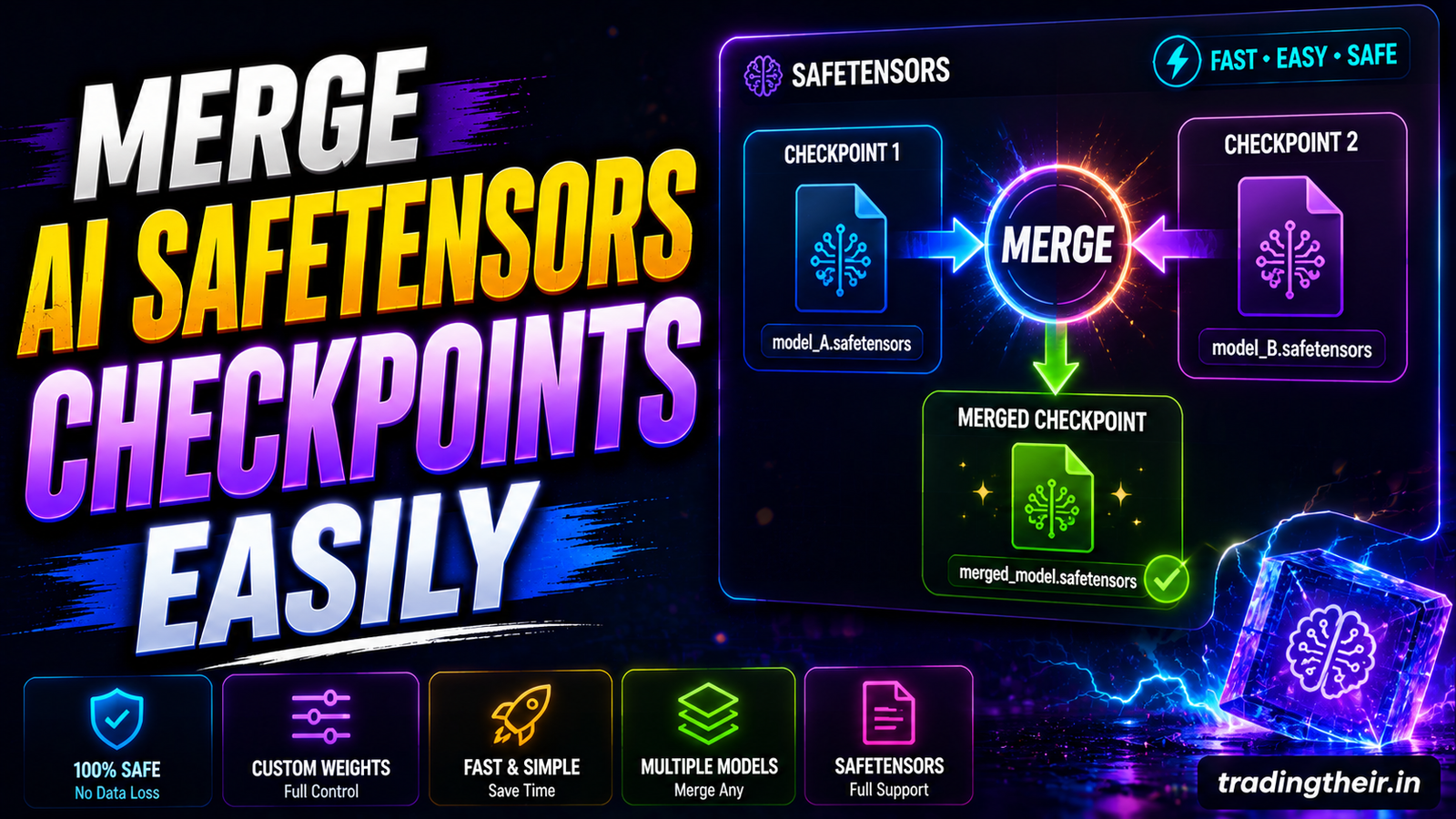
Artificial intelligence models are incredibly powerful digital tools. However, a single model rarely satisfies every creative requirement perfectly. You might find one model that generates beautiful photorealistic lighting. You might find another model that generates perfect web design layouts. You cannot use them both simultaneously in a standard generation pass. To get the best of both worlds, you must combine them permanently. You must learn how to merge AI Safetensors checkpoints easily.
Merging checkpoints mathematically combines the internal brain of two distinct models. It creates a brand new, highly customized digital asset. This process completely eliminates the need to rely on complex, multi-model rendering pipelines. You can bake your favorite visual styles directly into one master file. This comprehensive guide explains the exact mechanical steps required for flawless model merging. We will explore simple ratio blending and advanced block merging techniques. You will build the ultimate digital asset securely on your local computer.
Why You Must Merge Artificial Intelligence Models
Using dozens of different LoRA files clutters your digital workspace. Every time you load an external LoRA, your software consumes extra graphics memory. Your image generation times increase significantly. Managing complicated file dependencies across multiple client projects becomes highly frustrating.
Merging models fixes this severe workflow bottleneck instantly. When you bake a specific style directly into a base checkpoint, you eliminate external dependencies. The generation process runs significantly faster. Your local RTX graphics card processes one single mathematical file effortlessly. Furthermore, merging allows you to invent completely new visual aesthetics. You can blend a 3D architectural model with an anime illustration model. The resulting hybrid aesthetic will be completely unique to your personal design agency.
Understanding the Safetensors File Format
Before you merge anything, you must understand the file architecture. Legacy artificial intelligence models used the .ckpt (Checkpoint) file extension. This old format was incredibly dangerous. It allowed malicious users to hide executable malware inside the visual data. Loading a corrupted .ckpt file could compromise your entire operating system.
The open-source community created the .safetensors format to fix this massive security flaw. This modern format stores mathematical weights as pure, inert numbers. It physically cannot execute malicious code on your computer. Furthermore, it loads into your system memory significantly faster. You must only download and merge .safetensors files. If you possess older .ckpt files, you must convert them immediately before attempting any complex mathematical merging.
Managing Hardware Memory Bottlenecks
Merging massive AI checkpoints requires significant computational resources. However, it does not rely heavily on your graphics card (GPU). Model merging actually relies almost entirely on your system RAM and your main processor (CPU).
A standard Stable Diffusion 1.5 model requires roughly 2 gigabytes of RAM. A modern SDXL model requires roughly 6 gigabytes. When you merge two SDXL models, the software loads both massive files into your system memory simultaneously. It then creates a third file to hold the combined data. This means you need at least 20 gigabytes of free system RAM to prevent sudden crashes.
Close your heavy background web browsers entirely. Close your music applications and video editors. Ensure your local hardware setup allocates maximum power to the merging script. A capable processor like an i7 will calculate the mathematical blends much faster than older, budget processors.
Method 1: Using ComfyUI Model Merge Nodes
ComfyUI is the absolute best software for executing complex visual pipelines locally. It includes highly precise, built-in mathematical merging tools. You do not need to download external scripts to execute a basic blend.
Open your local ComfyUI interface in your web browser. Clear your active workspace completely. Double-click the background to open the search bar. Add two separate Load Checkpoint nodes to your grid. Select your two favorite .safetensors files from the dropdown menus. For example, select a photorealistic model for node A and a flat UI style model for node B.
Building the Mathematical Bridge
You must connect these two separate files together mathematically. Search for the ModelMergeSimple node and place it perfectly between the two loaders. This specific node acts as the mathematical bridge.
Connect the model output wire from loader A into the model1 input slot. Connect the model output wire from loader B into the model2 input slot. The software is now ready to combine the visual pixel generation weights.
Adjusting the Interpolation Ratio
The simple merge node features a critical slider labeled ratio. This slider dictates the exact mathematical balance of your new hybrid model.
If you set the ratio to 0.5, the software blends the models equally. The final asset will be exactly 50% model A and 50% model B. If you want the photorealistic style to dominate the aesthetic, you must adjust the slider. Set the ratio to 0.2. The software will apply 80% of model A’s lighting and only 20% of model B’s layout geometry. This golden ratio keeps the realistic textures intact while injecting subtle structural improvements.
Exporting the Final Safetensors File
You must save this newly generated mathematical data to your hard drive permanently. Search for the Save Checkpoint node in your node menu. Connect the output wire of your merge node directly into this saving block.
Type a highly descriptive name into the filename prefix box. Name it something like PhotoUI_Hybrid_v1. Click the queue generation button once. The system terminal will begin crunching massive numbers. Depending on your i7 processor speed, this takes a few minutes. When the terminal finishes, your brand new .safetensors file will appear in your output directory cleanly.
Method 2: Advanced Block Merging Strategies
Simple ratio merging blends the entire brain of the models equally. Sometimes, this produces highly unpredictable visual garbage. You might want the colors of model A but the line art style of model B. To achieve this extreme precision, you must use block merging.
A neural network is divided into specific structural layers called blocks. The “IN” blocks control the early layout composition. The “OUT” blocks control the final colors and fine textures. The “MID” blocks control the core object concepts.
You can use the ModelMergeBlocks node in ComfyUI to dictate specific ratios for every single block individually. If you want to steal the colors from model B, you set the “OUT” block ratios very high. You set the “IN” block ratios to zero. This complex mathematical surgery allows you to extract precise visual features without contaminating the rest of your favorite base model.
Mastering the Weighted Sum Formula
When you merge AI Safetensors checkpoints easily, the software utilizes specific algebraic formulas. The most common formula is the Weighted Sum.
The Weighted Sum formula takes the pixel values of Model A and Model B. It multiplies them by your chosen ratio and adds them together smoothly. This formula is absolutely perfect for blending two similar aesthetic models. If you blend two different anime models, Weighted Sum produces a beautiful, cohesive hybrid. It softens the harsh edges perfectly.
Mastering the Add Difference Formula
The Add Difference formula behaves completely differently. It requires three distinct models to function properly. You need Model A, Model B, and a base Model C.
This advanced formula subtracts the mathematical weights of Model C from Model B. It extracts the pure, isolated differences. Then, it adds those isolated differences directly into Model A.
This formula is incredibly powerful for injecting specific trained styles. Suppose Model C is the base SD 1.5 file. Model B is a custom SD 1.5 file trained on glowing neon buttons. The formula extracts the pure “neon button” mathematics. It injects those specific glowing pixels into your favorite photorealistic model effortlessly. It completely ignores the rest of the generic visual data.
Resolving Tensor Mismatch Errors
Sometimes, your merging process will crash violently. The local terminal will display a terrifying “Tensor Size Mismatch” red error code. This error means you attempted a physically impossible mathematical calculation.
You cannot merge fundamentally different model architectures together. You cannot merge a legacy SD 1.5 file with a modern SDXL file. Their internal brain sizes are mathematically incompatible. SD 1.5 uses a tiny text encoder. SDXL uses two massive text encoders. Attempting to bridge them corrupts your system memory instantly. Always verify that your two target models share the exact same core architecture before clicking the execute button.
Managing Model VAE Baking
The VAE (Variational Autoencoder) is the mathematical lens that translates hidden noise into visible pixels. If a model lacks a good VAE, the generated images look washed out, gray, and terribly muted.
Many popular checkpoints do not include a baked-in VAE file. When you merge models, you must ensure the final hybrid asset contains beautiful color decoding. You can bake a VAE directly into your merged .safetensors file permanently.
Use the ModelMerge nodes in ComfyUI and route a dedicated Load VAE node into the final Save Checkpoint block. Select the official sdxl_vae.safetensors file. The software will compress this color lens directly into your hybrid file. You will never have to load an external VAE node in your workspace again. It saves massive amounts of workflow time during daily digital agency operations.
Testing Your Newly Merged Checkpoint
Never assume your new mathematical hybrid works perfectly. You must test it ruthlessly before using it on active client web projects. Move your new .safetensors file into your main models/checkpoints directory folder.
Restart your ComfyUI server to register the new file cleanly. Build a standard text-to-image testing pipeline. Use a highly structured X/Y Plot node to test various text prompts simultaneously.
Test the model’s ability to render human faces, architectural structures, and flat vector UI elements. Look closely at the fine details. Are the edges blurry? Are the colors bleeding across boundaries? If the image looks deep-fried, your merge ratio was mathematically incorrect. You must delete the corrupted file and restart the merging process using a lower interpolation ratio.
Pruning Massive Files for Storage Optimization
Merging models creates incredibly massive output files. An SDXL merge can easily generate a 13-gigabyte file. Storing ten different hybrid models will fill your solid-state drive rapidly.
You must prune these files to save digital storage space. Pruning removes useless training data from the file architecture. It strips away the optimizer weights that are no longer needed for pure image generation.
Use the advanced saving settings in ComfyUI to export the model in fp16 precision format instead of fp32. This simple mathematical conversion shrinks the massive 13-gigabyte file down to a highly optimized 6.5-gigabyte file. It preserves absolute visual quality perfectly while saving your local hardware from massive storage bottlenecks.
By mastering these precise mathematical techniques, you gain ultimate creative control. You can merge AI Safetensors checkpoints easily to build proprietary digital tools. You do not have to rely on generic public models anymore. Your local rendering pipeline becomes highly optimized, incredibly fast, and visually spectacular. Start combining your favorite assets today and build the ultimate web design engine locally.