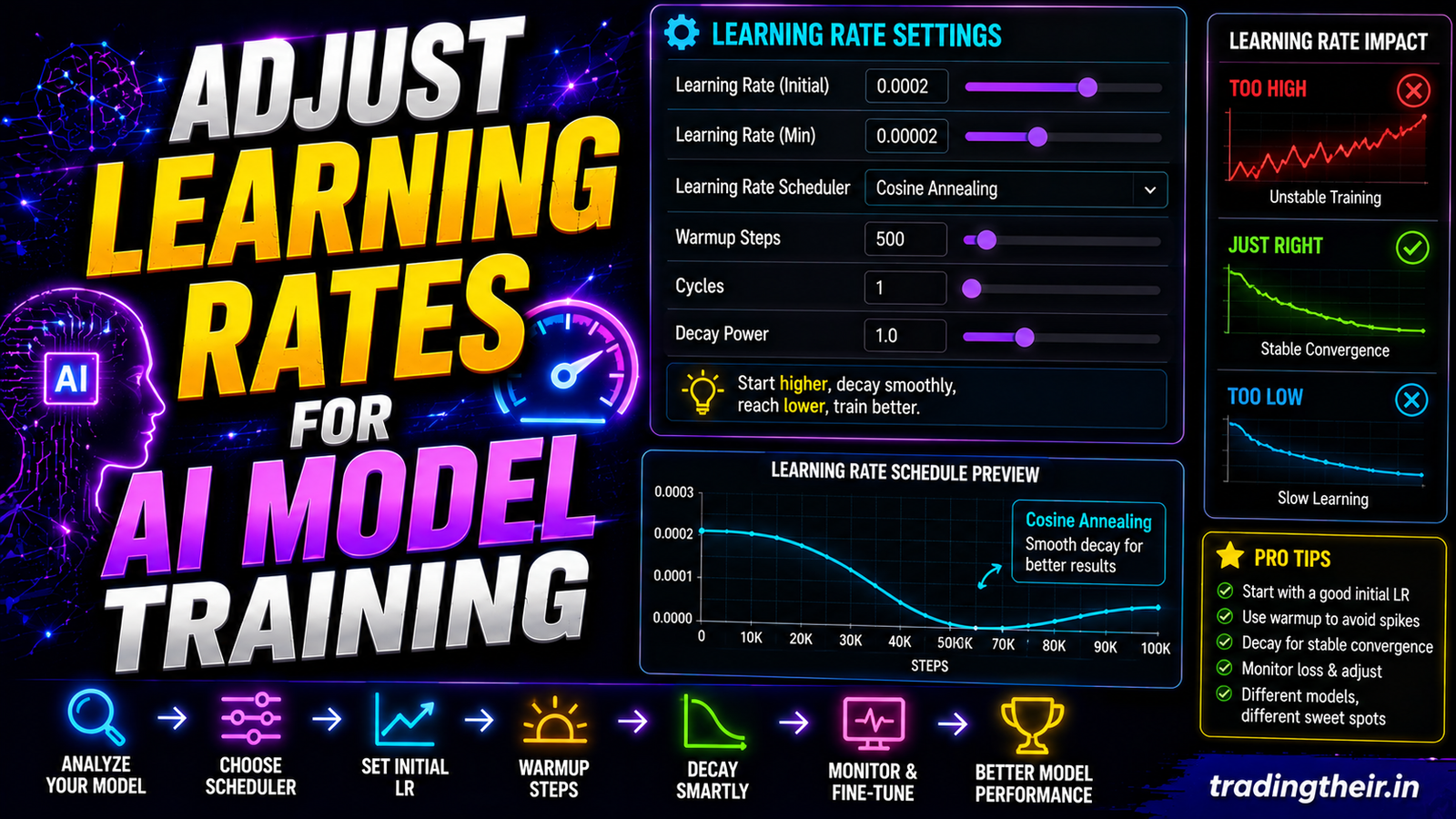
Training a custom artificial intelligence model is an exact science. You can curate the absolute perfect image dataset. You can establish a flawless local folder hierarchy. You can use the most expensive consumer graphics card available. However, all of this preparation means nothing if your core mathematics are wrong. The most critical mathematical parameter in Kohya SS is the learning rate. If you do not adjust learning rates for AI model training correctly, your model will fail completely.
The learning rate dictates how fast the neural network absorbs new information. It is the absolute heartbeat of your digital training pipeline. If you set this number too high, the artificial intelligence burns out. It destroys its own internal weights. If you set this number too low, the artificial intelligence learns absolutely nothing. This comprehensive guide explains the exact mechanical adjustments required for perfect model training. You will learn to read complex algorithms, manage hardware limitations, and build pristine digital assets locally.
What is a Learning Rate in Machine Learning?
Imagine teaching a person how to shoot a basketball. If you give them feedback too aggressively, they panic. They change their entire throwing motion wildly. They never develop consistent muscle memory. If you give them feedback too slowly, they repeat the same mistakes forever. They never improve their technique.
The artificial intelligence engine behaves exactly like this student. During a training cycle, the AI looks at your web design mockups. It attempts to guess the visual pattern. Then, it checks its guess against your provided text captions. The software calculates the error difference. The learning rate dictates exactly how massive of a step the AI takes to correct that error. You must take small, careful mathematical steps to achieve digital perfection.
Understanding Scientific Notation in Kohya SS
When you open the Kohya SS graphical interface, the learning rate boxes look confusing. You will often see strange numbers like 1e-4 or 5e-5. This is called scientific notation. Python uses this notation to handle extremely small decimal numbers efficiently.
You must understand this translation perfectly before you adjust learning rates for AI model training. The notation 1e-4 simply translates to 0.0001. The notation 5e-5 translates to 0.00005. The number after the “e” tells you exactly how many decimal places to move the digit. You can type either format into the Kohya SS interface natively. The underlying execution script understands both formats flawlessly.
Unet vs. Text Encoder Learning Rates
A standard diffusion model features two entirely separate brains. It features the Unet and the Text Encoder. You must assign different learning speeds to these two distinct brains.
The Unet is the visual artist. It controls the actual pixel generation. It understands shapes, lighting, and colors. The Text Encoder is the librarian. It understands your text prompts and translates human words into mathematical concepts. The Text Encoder is significantly more fragile than the Unet.
If you push the Text Encoder too hard, it loses its vocabulary completely. It will forget what the word “blue” means. Therefore, you must always set the Text Encoder learning rate significantly lower than the Unet learning rate. The standard golden rule is to set the Text Encoder at exactly half the speed of the Unet.
The Best Starting Rates for SDXL and SD 1.5
Different base models require vastly different mathematical approaches. Legacy models like Stable Diffusion 1.5 are highly rigid. They require slightly higher learning rates to absorb new concepts properly. Modern architectures like SDXL are incredibly sensitive. They absorb new data very quickly.
If you are training an SDXL model for web UI styles, use these exact starting parameters. Set your Unet learning rate to 0.0001 (1e-4). Set your Text Encoder learning rate to 0.00005 (5e-5).
If you are training a legacy SD 1.5 model, you must increase the mathematical pressure slightly. Set your Unet learning rate to 0.0004 (4e-4). Set your Text Encoder learning rate to 0.0001 (1e-4). These foundational numbers provide the absolute best starting point for local LoRA training.
How Optimizers Affect Your Learning Rate
The optimizer is the complex mathematical algorithm that applies your chosen learning rate. The default optimizer in Kohya SS is AdamW8bit. AdamW8bit is universally trusted. It calculates learning trajectories beautifully.
However, your RTX 4050 graphics card features a strict 6GB VRAM memory limit. AdamW8bit consumes massive amounts of visual memory. To protect your hardware from terminal crashes, you must switch your optimizer.
Select the Adafactor optimizer from the Kohya dropdown menu. Adafactor is highly optimized for budget hardware limits. It uses significantly less system memory. However, Adafactor scales the learning rate dynamically in the background. Because it manages the math differently, you might need to lower your base learning rate slightly when using it. Always run a small test epoch first when switching your core optimizer algorithms.
Choosing the Right Learning Rate Scheduler
The learning rate should never remain perfectly static during a training run. You want the AI to learn quickly at the beginning of the cycle. You want it to learn very slowly at the very end. This process refines the tiny, intricate details of your digital asset safely. You use a scheduler to control this dynamic timing.
Kohya SS offers several different scheduler options. The constant scheduler keeps the speed identical forever. This is highly dangerous and usually leads to sudden overfitting.
The cosine scheduler is the absolute best choice for custom LoRA training. A cosine scheduler starts fast. Then, it slowly curves downward like a gentle hill. By the final training epoch, the learning rate drops to almost zero. This gentle mathematical curve protects the delicate neural weights from burning out at the last second.
The Critical Importance of Warmup Steps
Shocking the neural network with heavy math instantly is a terrible idea. If the AI starts at maximum speed on step one, it panics. The mathematical loss graphs will spike violently. You must ease the system into the complex workflow gently.
You do this by configuring the Warmup Ratio parameter. When you adjust learning rates for AI model training, locate the warmup slider in the advanced tab. Set this parameter strictly to 10% (0.10).
If your total training run requires 2000 steps, the first 200 steps will act as the warmup phase. The learning rate will start at absolute zero. Over those 200 steps, it will slowly climb up to your target speed of 0.0001. This gentle acceleration stabilizes the internal mathematics beautifully. It prevents early-stage corruption completely.
Diagnosing a High Learning Rate Failure
You must learn to read visual failures accurately. A high learning rate destroys your dataset instantly. The visual symptoms are incredibly obvious.
If your learning rate is too high, the final generated image looks deep-fried. The edges of your UI elements become extremely jagged. The colors become wildly oversaturated and glowing. Heavy visual static and noise patterns appear across solid color blocks.
Furthermore, the model will ignore your text prompts completely. It will paste the exact same deep-fried image onto the canvas regardless of what you type. If you see these symptoms, your mathematical steps were too aggressive. You must divide your learning rate by half and restart the entire Kohya script.
Diagnosing a Low Learning Rate Failure
A low learning rate produces a completely different type of failure. If the math is too slow, the AI simply ignores your training dataset completely.
The visual symptoms look like the base model unchanged. If you trained a custom glowing neon button, the model generates a standard, boring flat button instead. It completely fails to replicate your custom visual aesthetic.
When you test the .safetensors file in ComfyUI, the trigger word does absolutely nothing. The AI learned too slowly to alter its internal brain structure. If you encounter this specific failure, you must multiply your base learning rate by two. Run the training script again using this faster, highly aggressive mathematical speed.
The Dim and Alpha Scaling Relationship
Your learning rate does not operate in a vacuum. It interacts heavily with your Network Rank (Dim) and Network Alpha parameters. These three numbers create a delicate mathematical triangle.
The Network Rank determines the physical brain capacity of your LoRA file. A larger brain requires more mathematical effort to train. The Network Alpha dictates how strongly the mathematical updates apply to that brain.
The absolute golden rule of local AI training involves a strict ratio. You must set your Network Alpha to exactly half of your Network Rank. If your Rank is 32, your Alpha must be 16. This specific ratio scales the effective learning rate downward natively. It stabilizes the cosine scheduler mathematically. Never set your Alpha higher than your Rank. Doing so breaks the learning algorithm and causes immediate pixel burning.
Batch Size and Gradient Accumulation Math
Your local hardware limits heavily impact your optimal learning speed. A 6GB RTX 4050 cannot process large batch sizes natively. You must set your actual training batch size to 1.
However, a tiny batch size makes the learning trajectory slightly erratic. To smooth out this erratic behavior, you use gradient accumulation. Set your gradient accumulation steps to 4. The software will process four individual images silently before taking one single mathematical step.
This simulated batch size affects your learning rate heavily. Because you are taking fewer total steps, you might need to increase your learning rate slightly. If your base rate was 0.0001 at a batch size of 1, increase it to 0.0002 when using a gradient accumulation of 4. This balance keeps the training speed perfectly optimized for budget graphics hardware.
Tracking Loss Graphs in TensorBoard
You should not wait until the training finishes to check for errors. You can monitor the mathematical learning speed in real-time. You must use the built-in TensorBoard application.
Kohya SS saves complex telemetry logs during the training cycle. Open a fresh terminal window. Type tensorboard --logdir=./log and press enter. Open the provided local web address in your browser.
You will see a massive line graph displaying your “Loss” value. Loss represents the error rate of the artificial intelligence. You want to see a gentle, downward sloping line. A downward line means the AI is learning correctly. If the line spikes upward violently, your learning rate is too high. You can cancel the training script immediately. This saves you hours of wasted computing time.
By mastering these complex numerical adjustments, you gain absolute control over your digital agency assets. You can adjust learning rates for AI model training flawlessly. You bypass catastrophic hardware crashes and deep-fried visual artifacts. Start dialing in your exact mathematical parameters today. Your custom web design models will generate pristine, hyper-realistic layouts effortlessly.