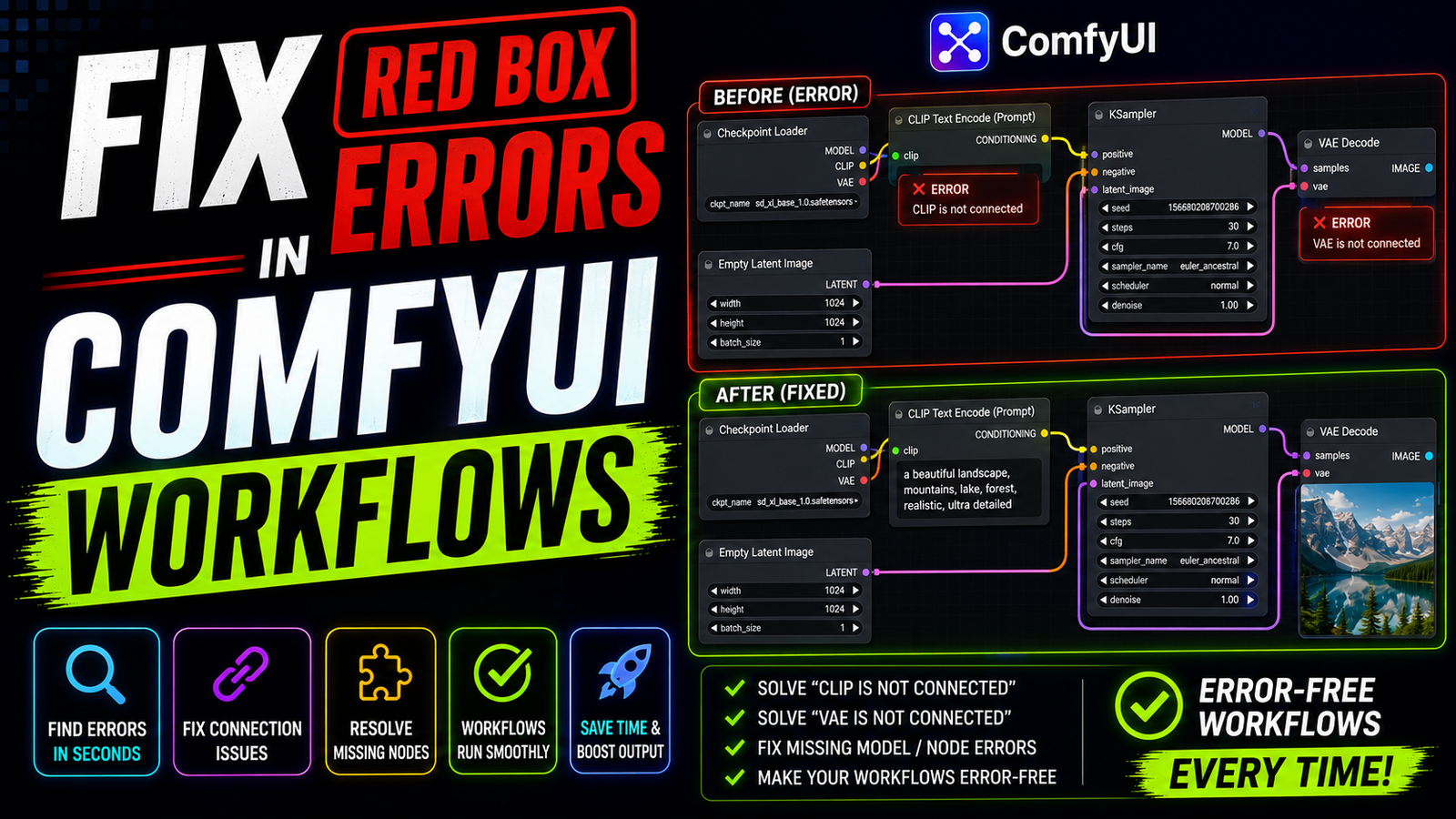
ComfyUI provides unmatched freedom for local artificial intelligence generation. You can build incredibly complex node graphs. You can download incredible community pipelines directly from the internet. However, loading a downloaded JSON file often leads to a highly frustrating experience. You drag the file onto your canvas. Instantly, massive red rectangles cover your screen. The software refuses to run. If you want to Fix Red Box Errors, you must understand how the backend engine reads these graph files.
These red boxes are the software’s default warning system. They indicate that a specific piece of mathematical code is missing. The workflow you downloaded requires a custom node that you do not own. You cannot simply ignore these warnings. A single missing node completely breaks the entire generation pipeline.
Fortunately, resolving these missing dependencies is usually a straightforward process. You do not need to be a professional Python developer to repair your workspace. This comprehensive guide walks you through the exact steps required to banish these warnings forever. You will learn how to identify, download, and repair broken graph segments seamlessly.
Understanding Why Red Boxes Appear
Before we apply the technical fixes, we must understand the root cause. When a creator builds a ComfyUI workflow, the software saves the layout as a JSON file. This text file records the exact name of every single node used.
When you load this file on your local machine, your software reads the names. It tries to match those names with the plugins installed in your local directory. If your directory lacks a specific plugin, the matching process fails. The interface draws a red box to highlight the exact location of the missing code block.
To Fix Red Box Errors, you must bridge this gap. You must install the exact missing plugins into your local environment. Sometimes the issue is a missing folder. Other times, the issue is a broken Python dependency that prevents a downloaded node from booting correctly.
The First Line of Defense: ComfyUI Manager
The absolute easiest way to resolve missing dependencies is using the community manager tool. If you do not have the ComfyUI Manager installed, you must install it immediately. It is an essential extension for maintaining a healthy local workspace.
Load your broken workflow onto the visual canvas grid. Click the “Manager” button located on your main floating control panel. A new menu window will appear on your screen. Click the highly visible button labeled “Install Missing Custom Nodes”.
The manager will scan your active canvas automatically. It cross-references the red boxes against its massive online database. It generates a clean list of every missing plugin pack. Click the install button next to each listed pack. Once the downloads finish, you must completely restart your ComfyUI backend server. Refresh your web browser. In eighty percent of cases, this simple process will Fix Red Box Errors instantly.
Diagnosing “Import Failed” Terminal Errors
Sometimes, the automated manager completes the installation successfully. However, when you restart the server, the red boxes remain on your screen. This creates a highly confusing loop. The manager says the node is installed, but the canvas says it is missing.
This specific loop is called an “Import Failed” error. The plugin folder exists on your hard drive, but the backend Python engine cannot boot it. To diagnose this, you must look at your black command prompt terminal window.
Scroll up through the terminal text immediately after launching the software. You will see a specific section labeled “Import times for custom nodes”. Below this, you will see a list of nodes that failed to load, highlighted with technical exception warnings. This text tells you exactly which backend dependency is broken.
Manually Resolving Python Dependencies
When a node fails to import, it usually lacks specific Python math libraries. Custom node developers include a requirements.txt file in their folders. This text file lists the exact background libraries needed to run their code.
Sometimes, the automated manager fails to read this text file correctly. You must install these requirements manually using your command line. Open your main ComfyUI installation directory. If you use the portable version, open a new command prompt inside the ComfyUI_windows_portable folder.
You must activate your isolated Python environment first. Run this specific command:
.\python_embeded\python.exe -m pip install -r .\ComfyUI\custom_nodes\NAME_OF_BROKEN_NODE\requirements.txt
(Note: Replace “NAME_OF_BROKEN_NODE” with the actual folder name of the failing plugin). This command forces your system to download the missing math libraries cleanly. Restart your server, and the node should finally boot correctly.
Fixing CUDA and PyTorch Mismatches
Sometimes, a manual requirements installation throws a massive wall of red text in your terminal. The terminal might complain about Torch versions or CUDA mismatches. This is the most complex reason a custom node fails to load.
Deep learning plugins rely heavily on specific versions of PyTorch. If a custom node requires an older PyTorch version, it will crash on a newly updated system. You cannot run conflicting PyTorch versions simultaneously.
To Fix Red Box Errors caused by severe version mismatches, you must update your core software. Open your ComfyUI_windows_portable\update folder. Run the batch file named update_comfyui_and_python_dependencies.bat. This script aligns your core engine with the latest community standards. If a very old node still refuses to load after a core update, the node is officially deprecated.
Dealing With Deprecated or Renamed Nodes
The open-source artificial intelligence community moves incredibly fast. Developers abandon old plugins frequently. Sometimes they rename their nodes completely in a new software update.
If you download an older workflow from last year, it might contain abandoned nodes. The manager cannot find them because they no longer exist in the active database. You cannot install them conventionally. You must replace them manually on your canvas.
Search the ComfyUI Manager database for modern equivalents. For example, if an old resizing node is broken, search for a new resizing package like “KJNodes”. Delete the red box from your canvas entirely. Place the modern equivalent node in its exact position. Reconnect the workflow wires manually.
How to Fix Red Box Errors Caused by Missing Models
Not all red warnings point to missing code plugins. Sometimes, the node exists, but its required artificial intelligence model is missing. You will see a red outline specifically around a “Load Checkpoint” or “Load VAE” node.
The node itself works perfectly. However, the dropdown menu cannot find the specific gigabyte-sized .safetensors file requested by the workflow author. The author used a custom model that you do not possess on your hard drive.
To fix this, you must read the text inside the red node box. It will display the exact filename of the missing model. Copy this filename. Search for it on popular model repositories like Civitai or HuggingFace. Download the massive file and place it in your models/checkpoints folder. Refresh your browser page, and the red warning outline will vanish.
Avoiding Workflow Pathing Issues
When you download workflows from advanced users, you might encounter structural pathing errors. Advanced creators often organize their massive model folders into subdirectories. They might have a folder path like checkpoints/anime/model.safetensors.
When they save the JSON workflow, it saves that exact subdirectory path. If your local models are just dumped directly into the main checkpoint folder, the node cannot find them. It will throw a red error even if you own the correct file.
To fix this pathing mismatch, you do not need to rearrange your hard drive. Simply click the dropdown menu on the red node. Select the model from your own personal list manually. This action rewrites the pathing data instantly and restores the connection.
Best Practices for a Healthy Workspace
Maintaining a stable local generation environment requires highly disciplined habits. You should avoid installing massive, unverified custom node packs blindly. Install only the specific plugins you actually need for a project.
Bloated environments increase startup times drastically. They also drastically increase the risk of Python dependency conflicts. When you try to Fix Red Box Errors, a clean environment makes terminal troubleshooting much easier.
Always keep your core ComfyUI engine updated. Run the update scripts at least once a month. This ensures you maintain strict compatibility with the latest community node releases. By understanding how the manager works and reading terminal logs, you can resolve any broken workflow gracefully. You will never have to abandon a brilliant downloaded pipeline again.