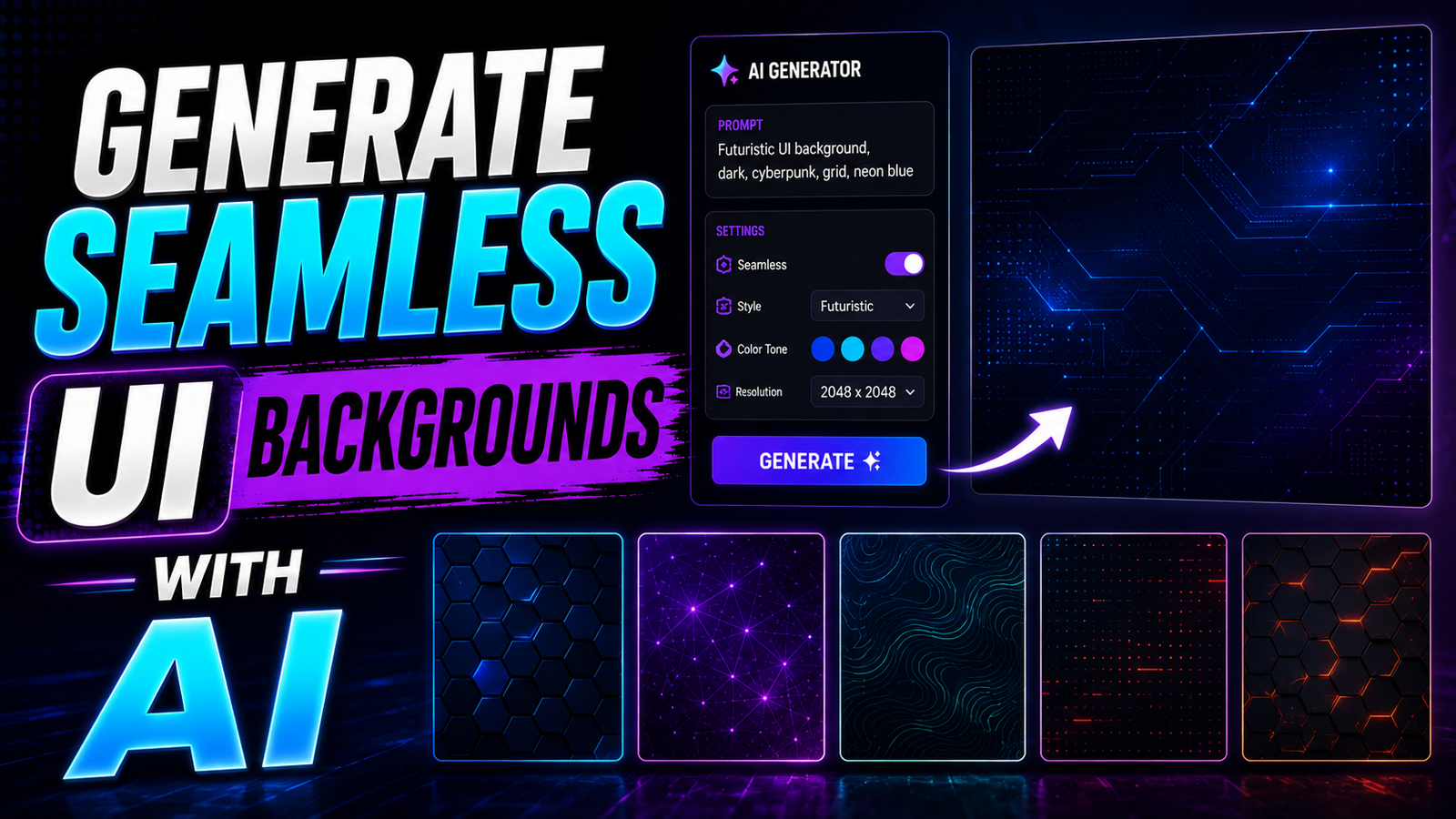
Web design requires beautiful and engaging visual assets. Creating repeatable patterns manually takes several hours of tedious work. You usually have to match edges perfectly using Adobe Photoshop. Today, you can Generate Seamless UI Backgrounds with AI almost instantly. This comprehensive guide shows you exactly how to do it using local ComfyUI workflows.
Creating a beautiful website background is incredibly difficult. The image must repeat endlessly across different screen sizes. If the edges do not match perfectly, a harsh line appears. This harsh line ruins the entire digital aesthetic instantly. Standard artificial intelligence tools struggle massively with this specific task.
Fortunately, open-source developers have solved this exact problem. By using specialized community nodes, you can force the AI to wrap its pixels. This technique ensures absolute continuity across your entire digital canvas. In this guide, you will learn the exact pipeline required for perfect patterns.
Why Standard AI Fails at Repeating Patterns
When you ask a standard AI model for a pattern, it fails. It usually creates a flat, isolated image canvas. The left edge does not communicate with the right edge. The top edge completely ignores the bottom edge.
If you tile this standard image on a live website, you see ugly grid lines. The pattern looks incredibly amateur and highly unprofessional. Standard models are trained to frame subjects directly in the center. They are not natively trained to create continuous wrapping textures.
To fix this fundamental issue, you must change how the AI processes data. The core mathematical engine must understand that the image wraps around itself. The underlying math must connect the opposite edges dynamically during the generation phase.
The Secret to Perfect Tiling Math
We achieve this perfect wrapping effect using specific custom nodes. These nodes alter the deep convolutional layers of your loaded checkpoint. They force the attention mechanics to look at the opposite sides of the picture.
This process is commonly known as circular padding or asymmetric tiling. It is a highly specialized rendering technique. When you want to Generate Seamless UI Backgrounds with AI, you cannot skip this step. If you ignore the underlying mathematics, your final output will always have visible seams.
Essential ComfyUI Tiling Extensions
You need a specific community extension to start this process. The ComfyUI-seamless-tiling extension is the absolute best tool available. It was created by the developer known as spinagon. This powerful package alters the core mathematical generation process cleanly.
It introduces specialized nodes explicitly tailored for creating seamless textures. It forces the pixels to wrap around the edges without visible seams. This makes it incredibly easy to produce high-quality, tiling images for various creative applications.
Step 1: Installing the Seamless Tiling Extension
First, open your active ComfyUI Manager inside your browser. Navigate to the search bar and type the extension name. Click the install button and restart your local server completely.
This extension adds several brand new nodes to your workspace menu. These nodes are mandatory to Generate Seamless UI Backgrounds with AI reliably. Verify the installation by double-clicking your empty canvas grid. Type “Seamless” into the search box. You should see the new options appear immediately.
Step 2: The Make Circular VAE Node
Standard image generation uses a normal VAE decode node. You must delete that default node from your grid immediately. Replace it entirely with the newly installed Make Circular VAE node.
This specific node decodes your latent image circularly. It improves backend efficiency by altering the VAE model only once per session. This optimization ensures that artists can achieve complex repeating patterns without sacrificing rendering speed.
Modifying the Checkpoint Seamless Settings
Next, place the Seamless Tile node directly onto your active grid. This node connects directly to your loaded AI checkpoint model. It modifies the internal layers of the AI checkpoint safely.
This modification allows users to prepare their models for seamless output natively. It is the most critical step in the entire graph pipeline. Without this specific node, the circular VAE will simply decode a broken pattern.
Step 3: Checking Your Work for Hidden Seams
You must verify the visual quality of your repeating pattern carefully. The human eye easily spots tiny misalignments in repetitive textures. The community extension includes an Offset Image node specifically for this verification task.
This specialized node shifts the image pixels visually across the screen. It pushes the hidden outer edges directly into the center of your monitor. This feature is absolutely essential for verifying the quality of the tiling. It helps you identify and correct any misalignments instantly before exporting.
Advanced Independent Axis Tiling
Sometimes you only want an image to repeat horizontally across a screen. You might need a wide, scrolling banner for a website header. Full circular tiling ruins this specific artistic effect.
This extension allows for independent X and Y tiling functionality. You can toggle the vertical wrap off entirely if needed. This advanced capability allows for greater flexibility in your overall texture design. It gives web developers massive control over how backgrounds behave on different devices.
Fixing the Num Type Callable Error
Sometimes, you might encounter a highly specific terminal error during generation. The system console might read “seamless tile num type object is not callable”. This error happens when the node attempts to copy internal data improperly.
To fix this frustrating issue instantly, change the node operation setting. Switch the setting directly to “modify in place”. This stops the python error completely and generates the texture properly.
Prompting Strategies for Perfect Patterns
Your text prompt matters immensely when generating flat textures. You must tell the artificial intelligence exactly what you want it to draw. Use strong, descriptive keywords like “repeating pattern”, “flat vector texture”, or “seamless background”.
Avoid descriptive words like “centered subject”, “depth of field”, or “3D perspective”. You want flat, evenly distributed visual elements across the entire canvas space. If you include lighting prompts, the AI might generate heavy shadows. Shadows look terrible when tiled across a wide computer monitor.
Safely Upscaling Your Seamless Textures
A standard 512×512 pixel pattern is usually too small for modern web design. You must upscale the image to maintain crisp visual fidelity. However, standard pixel upscalers will destroy your perfectly seamless edges completely.
You must use a latent upscaler workflow instead. Pass the enlarged latent data back through the circular VAE node a second time. This specific method maintains the perfect edge wrapping at massive resolutions. It ensures your 4K background remains completely flawless.
Why You Should Generate Seamless UI Backgrounds with AI
Buying premium stock patterns online is incredibly expensive. Finding the perfect color palette for a client is deeply frustrating. When you Generate Seamless UI Backgrounds with AI, you own the digital asset completely.
You can match your client’s exact brand colors by adjusting your prompt. You can iterate through dozens of unique design variations in minutes. This saves you massive amounts of project time. It also completely eliminates expensive recurring stock subscription fees.
Best Practices for Web Performance
Once you generate a beautiful pattern, you must compress the final file. High-resolution textures slow down website loading times significantly. Slow websites ruin the user experience and hurt your Google SEO rankings.
Save your final output as a highly compressed WebP file format. WebP offers incredible file compression without any visible quality loss. Your website background will look amazing and load instantly on mobile devices.
Troubleshooting Broken Workflow Edges
If your final exported image still shows visible seams, pause and check your workflow wiring. Ensure the circular VAE is actually connected directly to the final image output node.
Sometimes, highly stylized checkpoints resist the mathematical tiling modification entirely. If one specific model fails repeatedly, try a different community checkpoint. Base models like SD 1.5 usually handle tiling mathematics much better than heavily finetuned anime models.
Mastering the Tile Generation Workflow
Learning to Generate Seamless UI Backgrounds with AI takes a little bit of practice. Start your journey with simple, flat geometric patterns. Move onto complex floral patterns or abstract 3D designs later.
Once you understand the core mechanics of the circular VAE, the process becomes effortless. You will never need to buy a generic stock texture again. You possess the ultimate tool for unlimited, highly customized web design assets.